

How to Stow the Motorized Starlink Dish
Stowing the Dish Using the Starlink App
While connected to the Starlink router, open the Starlink app.
Go to Settings > Starlink, then select the option labeled Stow.
Swipe to confirm, and the dish will move into the stowed position.

Stowing the Dish Using a Web Browser
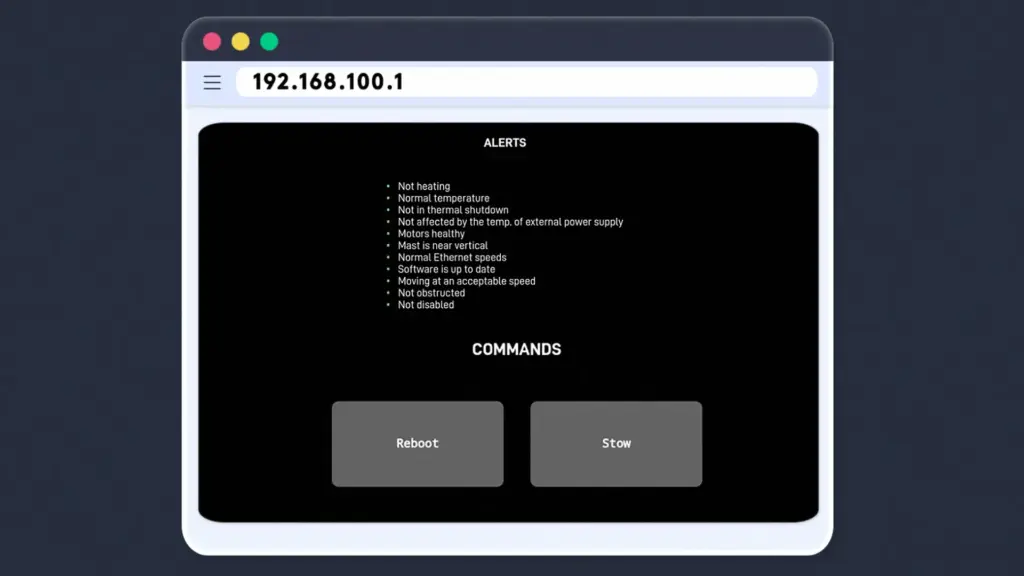
Alternatively, while connected to the Starlink network, open a web browser and go to: 192.168.100.1
From there, press the Stow button.
How to Stow the Starlink Dish in Bypass Mode
When the Starlink router is in bypass mode, the Starlink app may not be able to communicate with the router.
This can prevent the dish from being stowed through the app.
There are a few ways to stow the dish while in bypass mode.
Option 1: Use the Web Interface
While connected to the network, and if your network configuration allows it (static route to 192.168.100.x), open a web browser and go to 192.168.100.1
If available, you should see a Stow button.
Option 2: Place the Dish Upside Down
Place the dish face down or upside down, then power cycle the Starlink router.
After one or two minutes, the dish should automatically move into the stowed position
Option 3: Factory Reset the Router
Reset the Starlink router to factory defaults by power cycling it six times.
Once reset, connect to the Wi-Fi network named STARLINK. You can then use the Starlink app or web interface to stow the dish as described above.
How to Set the Starlink Router to Bypass Mode
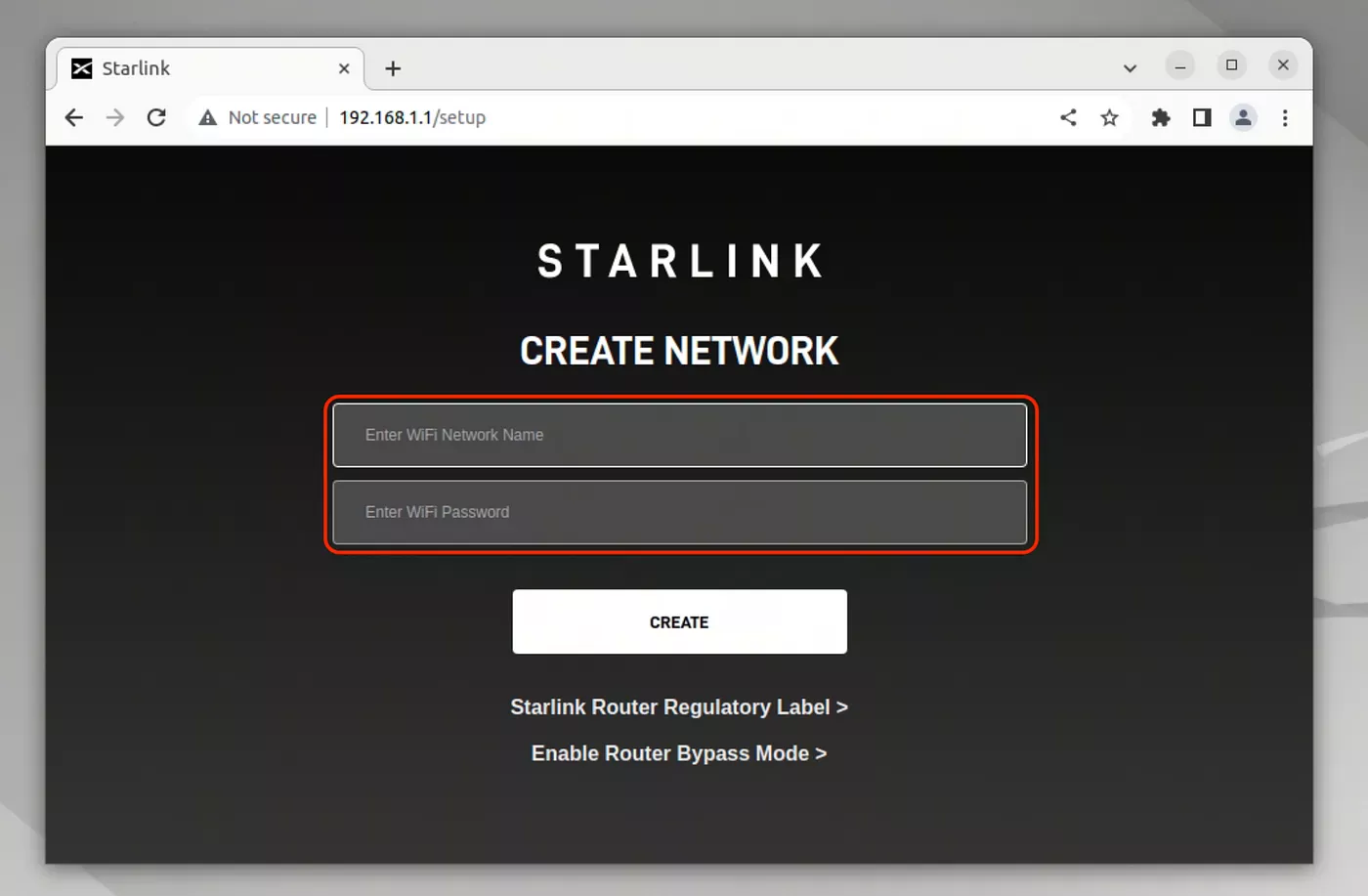
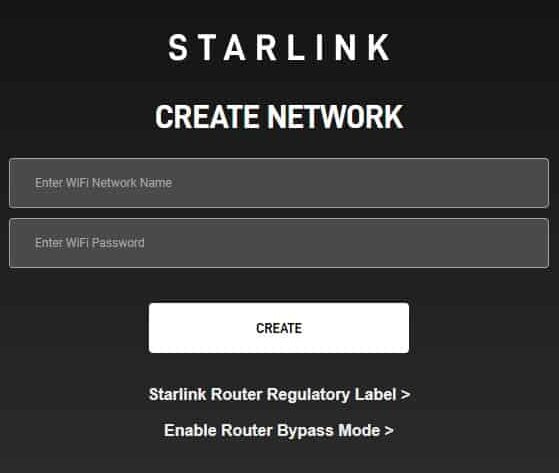
To enable bypass mode, the Starlink router must first be in its factory default state. This means that no custom Wi-Fi name or password has been set.
Once the Starlink kit has been installed, connect to the Starlink network and open a web browser.
Go to: 192.168.1.1
A web interface should open. From there, select: Enable Router Bypass Mode
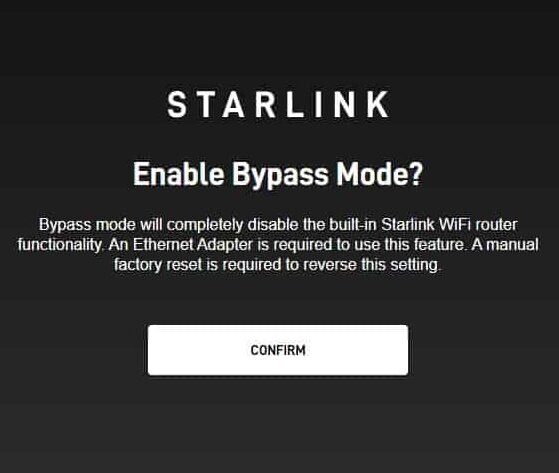
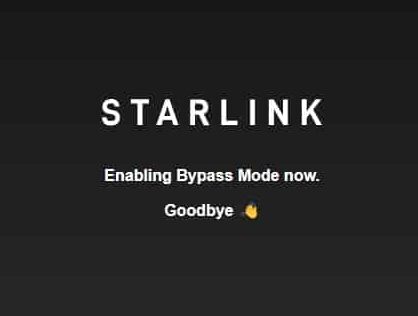
Bypass mode should only be used in specific situations, such as when you need to use your own router equipment for features like port forwarding, public IPv4, or IPv6 configuration, double Natting etc..